Evidence-based guide
Notion for Habit Tracking: Pros, Cons, and Automated Alternatives
Learn how to build a practical Notion habit tracker, reduce mobile entry friction, and decide whether a database, spreadsheet, or dedicated app fits you better.
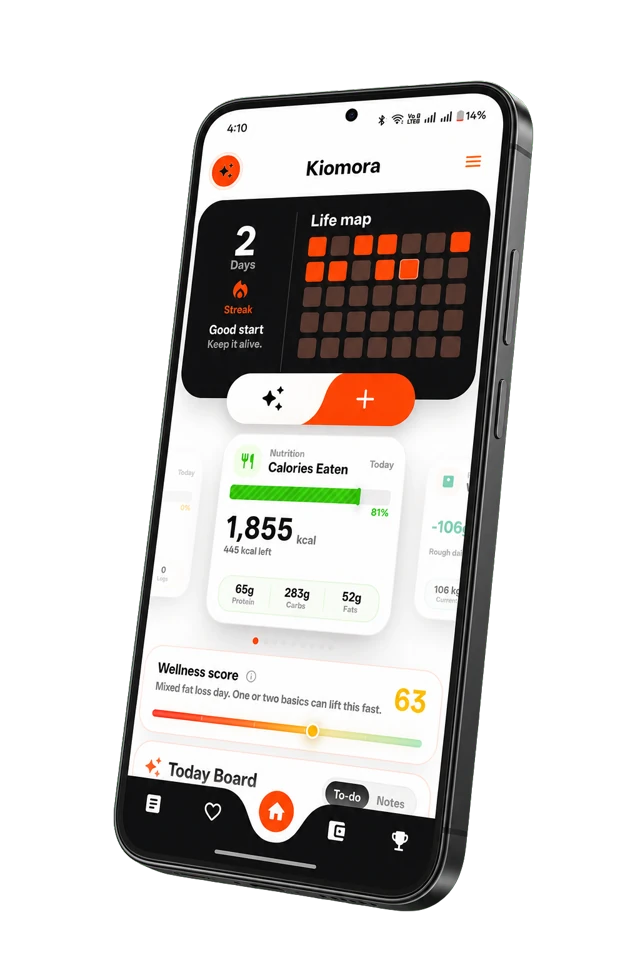
Kiomora for daily context
Your life, connected
Keep habits, wellness, spending, notes, and memories together so the details stay useful later.
Explore KiomoraNotion can be an excellent habit tracker for the right person. Its databases are flexible, each record can hold a full page of notes, and the same data can appear as a table, calendar, list, or chart. That flexibility is useful when your habit record needs to connect with projects, reading notes, goals, or a wider personal dashboard.
The tradeoff is maintenance. You must decide how the database works, keep its properties tidy, and make daily entry quick enough that you still use it on an ordinary Tuesday. This guide shows a practical setup before comparing Notion with simpler alternatives.
The short verdict
| Choose Notion when | Choose something simpler when |
|---|---|
| You want custom properties, linked databases, several views, and room for detailed notes. | You mainly need a fast daily check-in, automatic reports, or very little setup. |
| Building and adjusting the system is part of the value for you. | You repeatedly polish templates but stop entering data. |
| You already keep projects, goals, or journals in Notion. | Your habit record needs to connect with sleep, food, spending, movement, and memories without manual database design. |
Build a useful Notion habit tracker in 15 minutes
Start with one full-page table database. Notion describes every database item as its own page, with properties that can be filtered, sorted, searched, and shown through different views. That makes one row per habit check-in more flexible than one row per day with a permanent checkbox for every habit.
1. Create these six properties
| Property | Type | What it records |
|---|---|---|
| Entry | Title | A short label such as Morning walk or Read |
| Date | Date | When the habit was planned or completed |
| Habit | Select | The repeatable habit name |
| State | Status | Done, Missed, Intentional rest, or Not planned |
| Amount | Number | Optional minutes, pages, glasses, or another stable unit |
| Context | Text | One sentence about travel, illness, workload, people, or another useful detail |
The State property matters because a planned rest day is not the same as a missed planned action. The Context field keeps an unusual day understandable without adding ten more columns.
2. Add three views
- Today: filter Date to today and show Entry, Habit, State, and Amount.
- This week: filter Date to the current week, group by Habit, and keep Context visible.
- Calendar: use the Date property to see gaps and clusters without treating every blank day as failure.
Notion allows the same database to appear through several views, so these do not create duplicate data. Keep the Today view sparse and leave analysis for the weekly view.
3. Add one optional completion formula
If you want a numeric field for later summaries, create a Formula property named Completion value and use if(State == "Done", 1, 0). The value can be averaged in a grouped view, but remember that Not planned and Intentional rest may need to be excluded from your denominator rather than counted as zero.
Make mobile entry faster
A database is only useful if the capture path survives real life. Notion now supports forms connected directly to database properties. Build the form on desktop or web, then keep its link somewhere easy to reach on your phone. Ask only for Habit, State, Amount, and Context.
You can also create a Notion button that adds a page to the database with preset properties. A button for Morning walk can create the row and fill the Habit value, leaving only State and Amount for you to complete.
- Create one form or button, not one for every possible situation.
- Hide properties that do not matter during capture.
- Keep optional fields optional.
- Test the flow while standing or walking, not only at a desktop.
- If a normal entry takes more than a minute, remove a step.
Notion habit tracking pros and cons
| Strength | Tradeoff |
|---|---|
| Flexible properties and views | You must design and maintain the structure |
| Each row can hold detailed notes | Opening full pages can slow a tiny check-in |
| Relations can connect habits with projects or books | Relations and rollups add setup and troubleshooting |
| Forms and buttons can reduce repeated entry | The fastest workflow still requires deliberate setup |
| Useful for custom desktop review | Purpose-built trackers may offer faster mobile capture and automatic reports |
Four traps that make the tracker harder to keep
One checkbox property per habit
This looks simple at first, but every new habit changes the database structure. One row per check-in keeps Habit as data instead of turning each habit into a permanent column.
Decorating before collecting
Icons and covers are harmless, but they do not test whether the workflow is usable. Enter seven days of real data before adding progress bars or a large dashboard.
Counting every blank as failure
A blank can mean forgotten entry, intentional rest, travel, illness, or an unplanned day. Use clear states when the difference matters.
Building calculations before choosing a question
Start with a question such as, "Which days make reading easiest?" Then track only the completion state and context needed to review it.
Notion, spreadsheet, paper, or a dedicated tracker?
- Notion: best for flexible databases, linked pages, and people who enjoy building their own system.
- Spreadsheet: best for custom calculations, exports, and direct control over rows and formulas.
- Paper: best for a visible, distraction-free routine with no account or device.
- Dedicated habit tracker: best for fast taps, reminders, streaks, and a narrower routine.
- Kiomora: best when habits need to sit beside sleep, food, movement, spending, notes, and memories in one daily record.
Notion and Kiomora do not have to replace one another. Notion can remain your project and knowledge workspace while Kiomora handles everyday capture and later retrieval. Our Kiomora vs Notion comparison separates those jobs feature by feature.
Run a seven-day test before committing
- Choose two habits and one optional context note.
- Use the Today view or form for seven days.
- Record intentional rest separately.
- Review the week once.
- Keep Notion only if the review returns something worth the entry effort.
If you want to define the question and stop rule first, use the free Personal Tracking Plan worksheet. If a printable grid fits better, use the Printable Habit Tracker Generator.
Official Notion documentation
- Notion Help: Intro to databases
- Notion Help: Database properties
- Notion Help: Formulas
- Notion Help: Forms
- Notion Help: Buttons
Common questions
Practical answers before you begin
- Is Notion good for habit tracking?
- Notion is excellent when you enjoy designing a flexible system and reviewing it at a desk. It can feel heavy for an in-the-moment mobile check-in, so its fit depends on whether setup is part of the value for you.
- Why do I stop using habit trackers?
- The usual problem is friction: too many fields, a separate workflow, or guilt after a missed day. Make the log smaller, lower the bar for a successful check-in, and treat missed days as information instead of failure.
- What is the best Notion habit tracker structure?
- For a tracker that may change over time, use one database row per habit check-in. Give each row a date, habit, state, optional amount, and short context note. This avoids adding a new database property every time you add a habit.
Don't forget to try Kiomora
See more thanone detail
Keep the useful parts of each day in one record you can return to.
Explore Kiomora